Garage Smart Phone Set Up - Computer view. (For Phone click here)
1. Select a 4 digits password (also referred to as "Remote Key" in the app) and give it to the building owner, with your name and email address.
2. ONLY continue after the above information was given and your account was created.
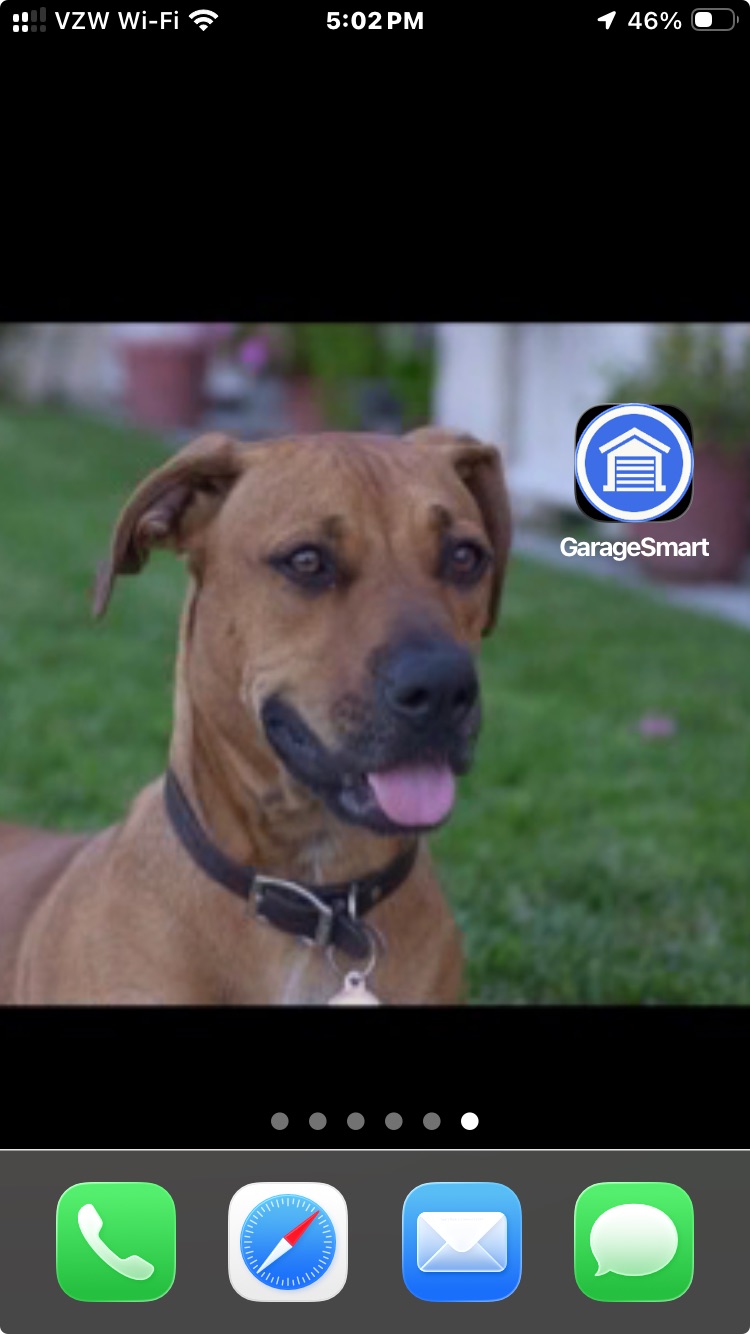
3. Download the "GarageSmart" app that looks like the one in the picture.
https://play.google.com/store/apps/details?id=net.garagesmart.garagesmart&hl=en_US
https://apps.apple.com/us/app/garagesmart/id1094394470
4.Open the app.
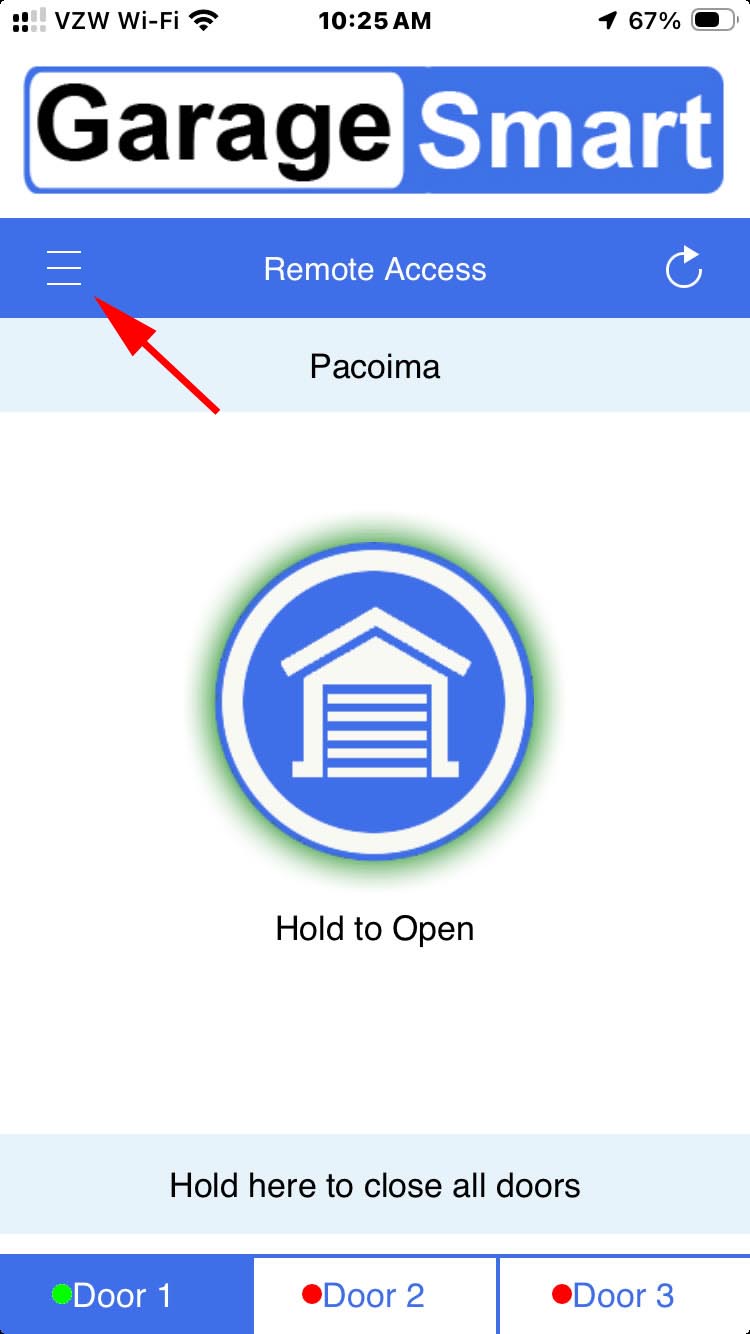
5.Click the 3 lines on the left to go to settings.
6. Click "My Devices".
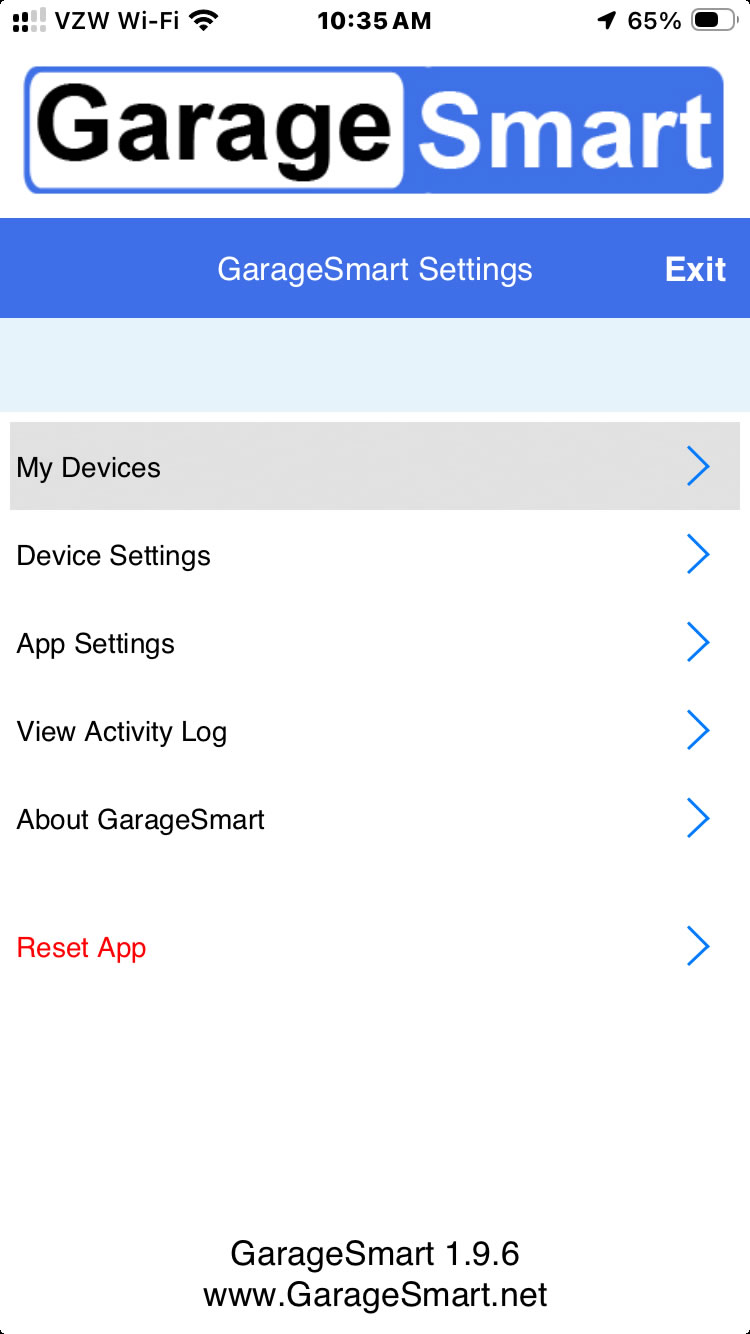
7. Add Device Name: Pacoima, Device ID: c4e030, Remote Key: Your 4 digit password that you gave Ady in step #1.
8. Save the device.
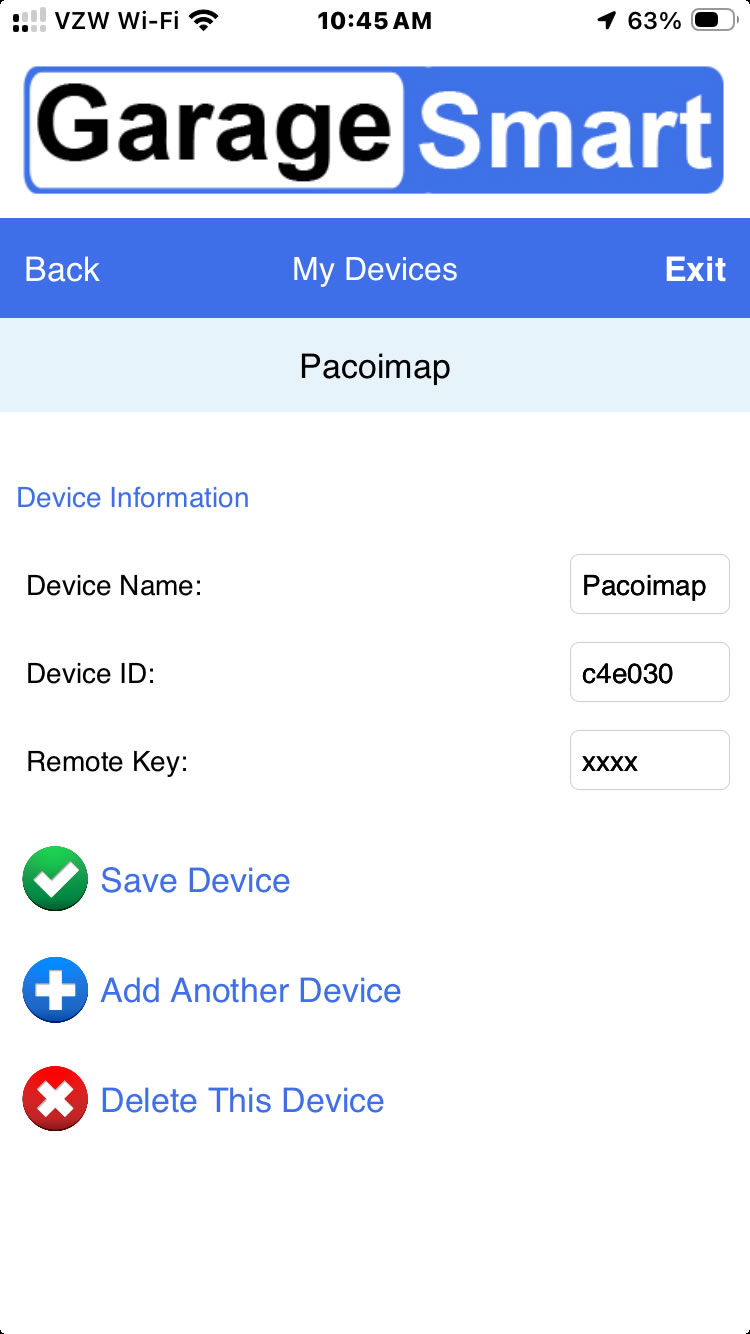
9. Exit.
10. Device setting.
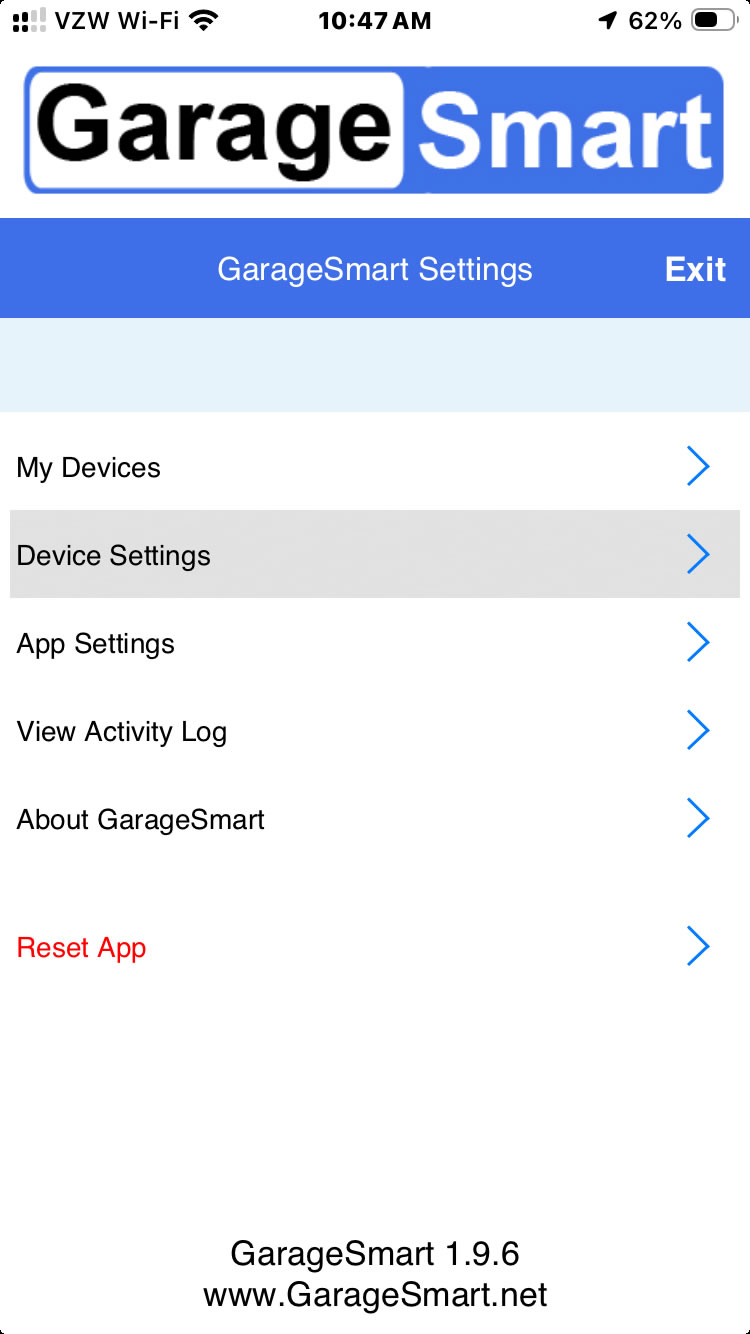
11. Select "Residential" for simple look, or "commercial for detailed look.
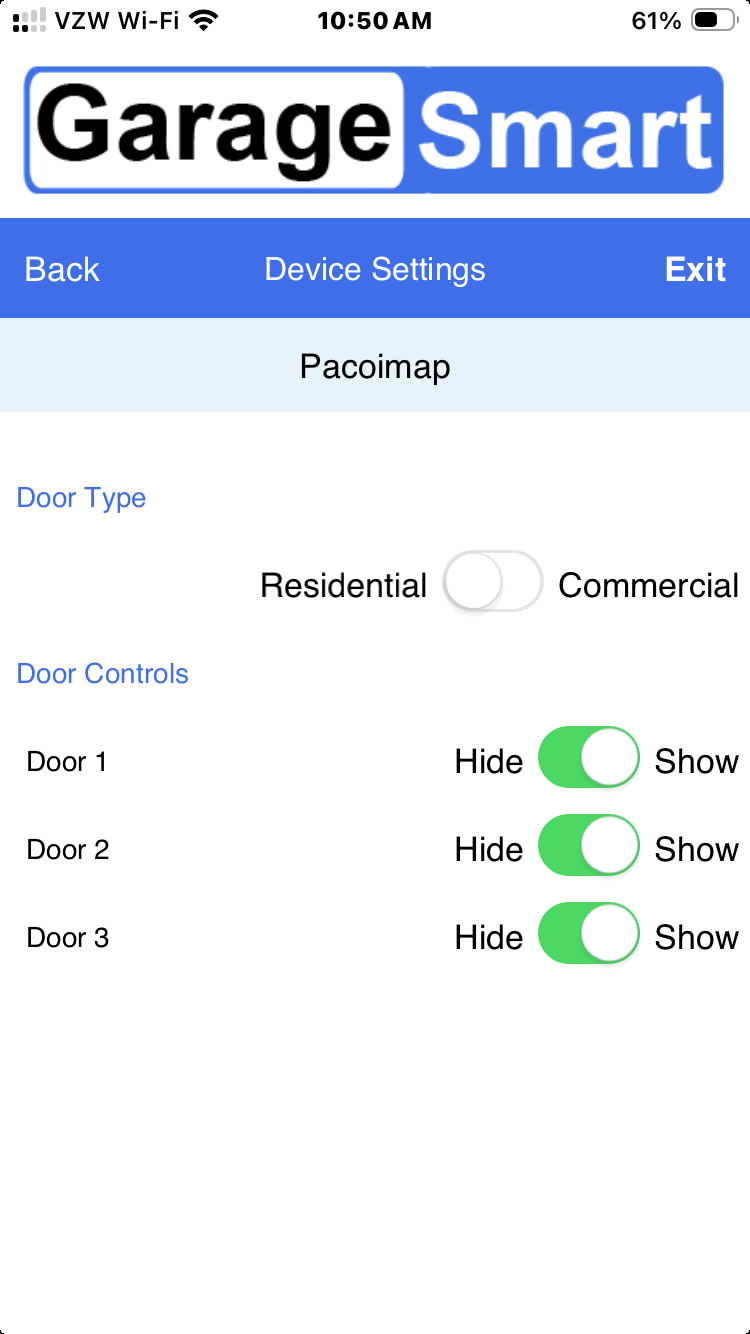
12. Exit.
13. Go to App Settings.
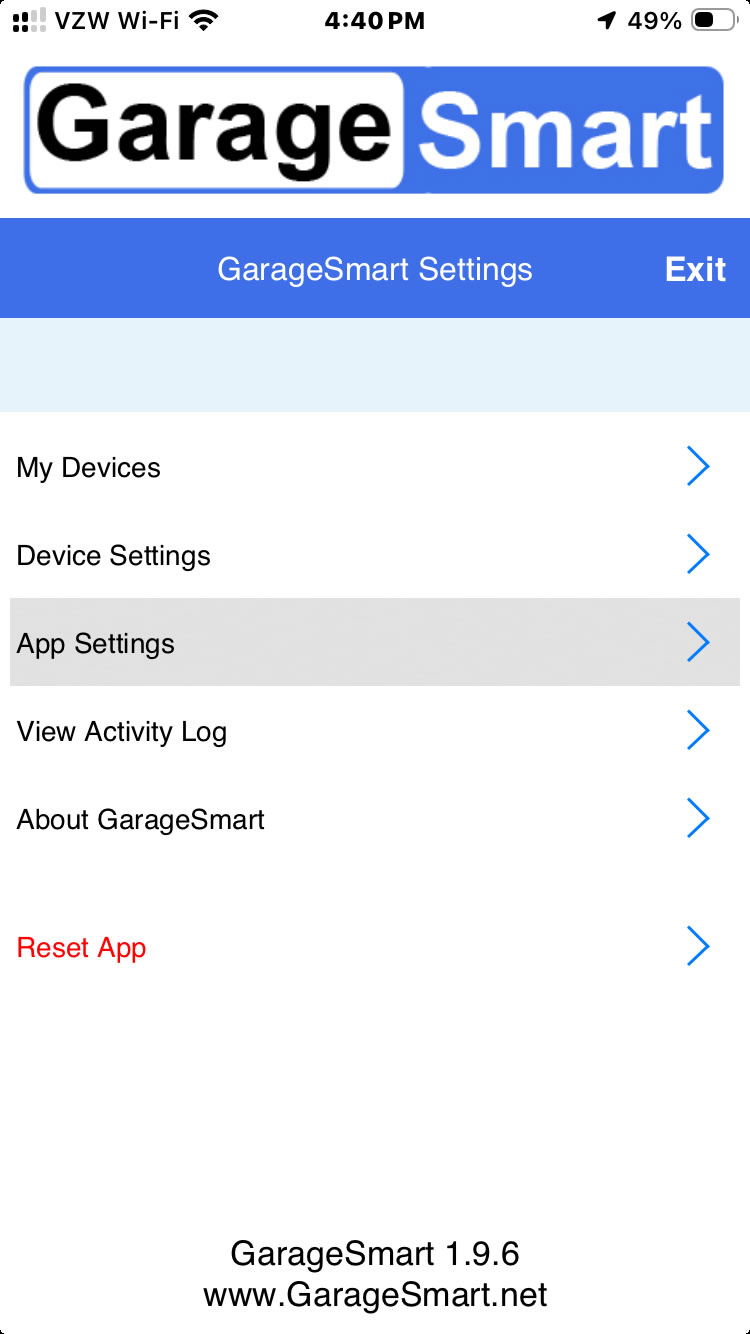
14. Set "Check Door Status" to "Yes".
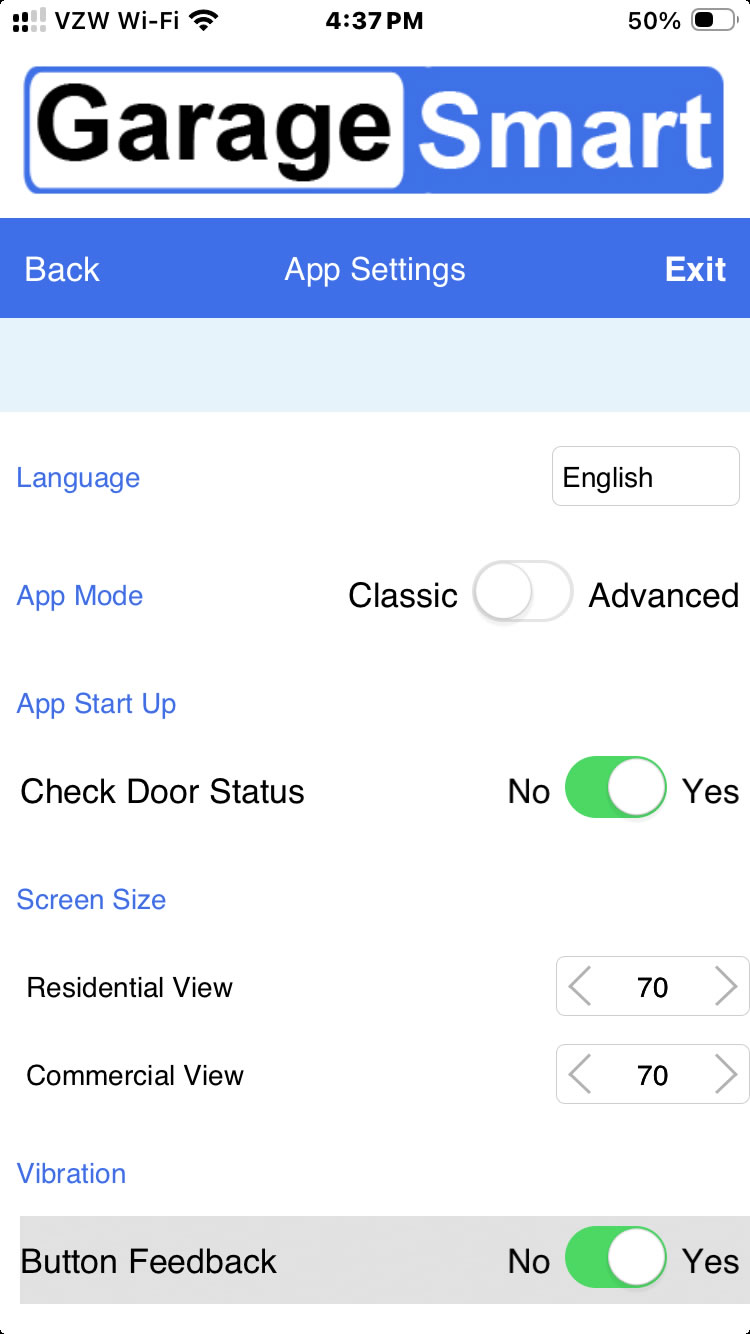
15. In the residential view you will have this screen and the door status will be green for close and red for open. if not sowing, click "refresh" on top right.
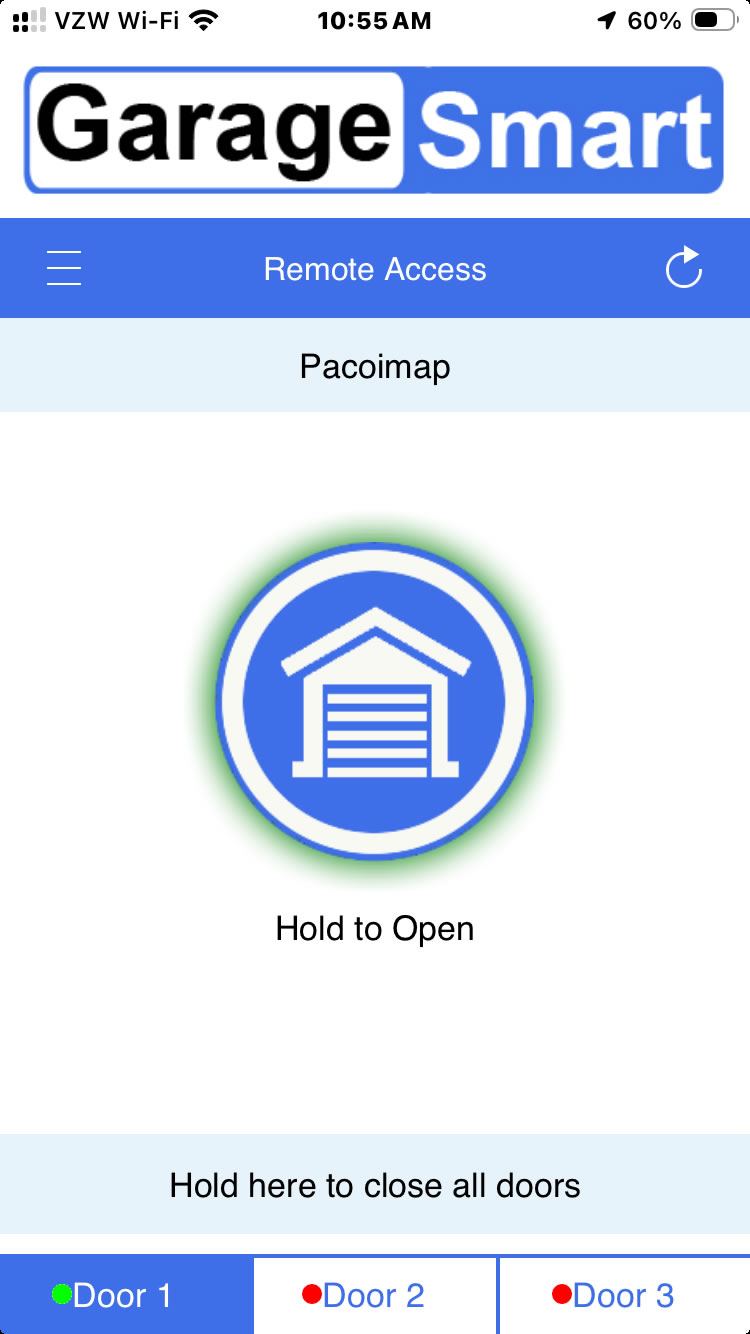
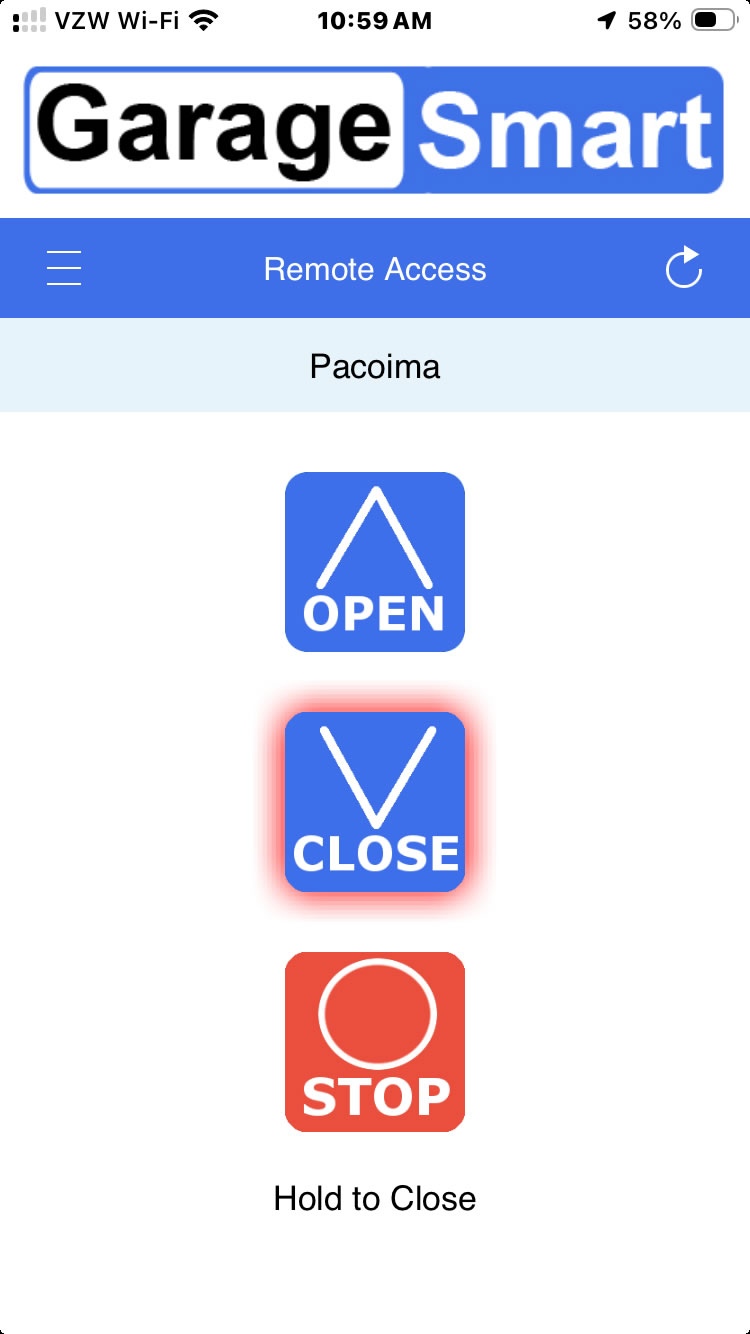
16. In the commercial view selected in step 11 you will have this screen and the door status will be red around the button. if not sowing, click "refresh" on top right.